How to Merge Photos on iPhone: A Practical Guide
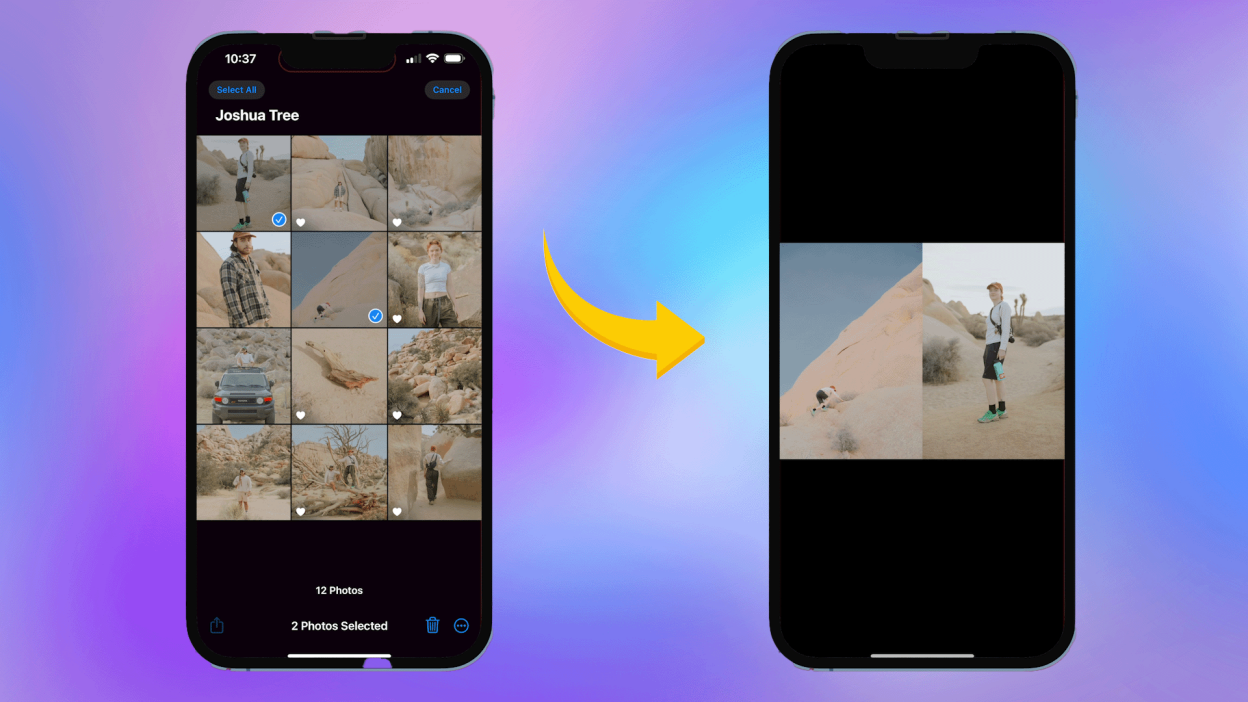
Curious about how to merge photos on iphone? This guide explains several reliable methods to create a single image from multiple shots, using built‑in tools and popular apps. Whether you want to assemble a quick memory collage or combine two sunsets into one frame, you’ll find options that work for beginners and power users alike.
Why you might want to merge photos on iPhone
Merging photos on iPhone can help you tell more compelling stories with fewer files. A side‑by‑side collage is perfect for documenting a trip, showcasing before-and-after moments, or pairing a landscape with your reaction. Merging can also simplify sharing—instead of sending two separate images, you can post or message a single composite that captures the moment. With the right approach, you preserve photo quality while achieving a clean, professional look for social media, slides, or digital albums.
Built-in options you can try
While the Photos app on iPhone doesn’t include a one‑tap “merge” button, you can still combine images using convenient built‑in workflows. One approach is to use the Shortcuts app to run an image merge action. Create a shortcut that asks you to pick two photos, then combines them horizontally or vertically and saves the result to your Camera Roll. If you’d rather not build a shortcut from scratch, search for ready‑made shortcuts online and customize them to your needs. This path keeps your workflow fast and privacy‑friendly since everything stays on your device.
Third‑party apps that make it easy
Many users opt for collage and photo‑editing apps to merge images with more creative control. Canva, PicCollage, and Fotor offer drag‑and‑drop canvases, grid layouts, and grid spacing to align photos precisely. These tools let you adjust borders, add text, apply filters, and export at high resolution. If you prefer a minimalist look, some apps focus on clean, single‑image composites with subtle shadows or frames. When selecting a third‑party option, check for features like aspect ratio presets (1:1 for social posts, 16:9 for slides) and export quality to preserve detail.
Step‑by‑step quick start
To merge two photos using a shortcut: open Shortcuts > Create Shortcut > Add Action > Choose Images (or Ask for Input) > Add Action > Combine Images, choose Horizontal or Vertical, then Save to Photos. If you’d rather use a collage app: install your preferred tool, start a new project, choose a collage or custom layout, import the two photos, arrange them, and export. In both cases, aim for a consistent color balance and a similar resolution to minimize visible seams or blur at the join.
Tips for quality and privacy
Tips to ensure the best result include matching the aspect ratio of the photos, using similar exposure settings, and keeping a modest border if you want a clean edge between images. When merging, consider whether you want a single combined image or a stacked overlay for a more artistic effect. If you share the final image online, remember to respect privacy—crop out faces or sensitive details if needed, and use the highest acceptable resolution to maintain clarity across devices.
Wrapping up
Learning how to merge photos on iphone empowers you to present memories more cohesively and creatively. Whether you lean on built‑in shortcuts, rely on a robust collage app, or experiment with Canva’s design tools, the process is approachable and repeatable. For more tech tips and tutorials, visit Magazetty.